View Categories

New Time Tracker

Introduction #

The Redmineflux Time Tracker Plugin is a powerful tool that enhances real-time time-tracking capabilities within the Redmine project management system. This user guide will walk you through the installation, configuration, and usage of the plugin, enabling you to efficiently track, manage, and analyze time-related data for your projects. The plugin provides an intuitive, modern interface for a seamless experience when logging work hours. 

Version Compatibility #

Redmine Versions

  • 5.0.x
  • 5.1.x
  • 6.0.x

Installation #

To install the Redmineflux Time Tracker Plugin, follow these steps:

  1. Ensure you have a working installation of Redmine.
  2. Unzip the plugin archive and upload the Time Tracker folder to
    Redmine/plugins.
    Do not change the plugin folder name.
  3. Install the required dependencies by running:
    Bundle install 
  4. Run migrate command for database migration  
    -> In Production 
    RAILS_ENV=Production bundle exec rails redmine:plugins:migrate
    redmine:plugins:migrate 

    -> In Development
      RAILS_ENV=Development bundle exec rails redmine:plugins:migrate
  5. Restart Redmine server to load the plugin 
    Rails s

License Key Configuration #

After successfully installing the plugin:

1. Log in to your Redmine instance as an Admin user.

2. Navigate to Administration → Plugins.

3. Locate the Redmineflux Time Tracker Plugin and click Configure.

4. You will see two input fields:

a. License Key

b. Security Key

5. Enter the key values you received via email or order details.

6. Click Apply to validate and activate the plugin license.

Once validated, the plugin will be ready for use.

Note: By default, a Redmineflux license key supports 100 active users of Redmine. If your organization requires more than 100 active users, you’ll need to purchase additional user licenses.

You have two options to update your user license:

1. Purchase additional user licenses during your initial plugin purchase.

2. After the purchase, go to the “My Account” section in your profile to upgrade the number of users.

How to Deactivate and Activate Plugin on New Domain / IP #

  1. Go to Order Section
    • Navigate to the Order section in your account.
    • Click on View Order for the plugin you want to transfer.
  2. Change Domain URL
    • In the domain URL, remove the current domain URL.
    • Enter or paste your desired new domain URL.
    • Click on the Save button to update the domain.
  3. Activate Plugin on New Domain
    • Go to the plugin configuration section on your desired domain.
    • Enter your License Key and Secret Key in the appropriate fields.
    • Save the settings to activate the plugin on the new domain.

Configuration #

  1. Log in to Redmine using administrative credentials. 
  2. Navigate to Administration → Plugins.  
  3. Locate Redmineflux Time Tracker and click Configure.   
  4. Configure the available options:
    1. Require Location Permission 
      When enabled, users must allow location access when starting or stopping the timer. 
      You can specify users who must enable location tracking. 
      If no users are selected, location tracking will be required for all users. 
    2. Enable Manual Time Entry 
      Allows users to manually enter time entries with custom start and end times. 
    3. Google Maps API Key 
      Required to display user locations on the map view. 
    4. Time Tracker Page Design 
      Choose from: 
      i. Modern Card 
      ii. Compact Layout 
      iii. Detailed Expanded 
          You can preview each design before selecting.

  5. Click Apply to save the changes. 

Roles & Permissions  #

The plugin provides four types of role permissions: 

  1. View Time Tracker Activity 
    Allows users to access the activity module. 
  2. View Time Tracker Reports 
    Enables access to all reports within the plugin.
  3. Manage Time Tracker Tags 
    Allows users to create, edit, and delete tags. 

How To #

How to View the Time Tracker  #

  1. Open your web browser and navigate to the Redmine login page. 
  2. Log in using your username and password. 
  3. From the dashboard or home page, click Time Tracker in the navigation menu. 
  4. On the Time Tracker page, you can: 
    1. Start a timer 
    2. Add a manual time entry 
    3. View current and previous time entries by scrolling.
    1.  

redmineflux time tracker view time tracker

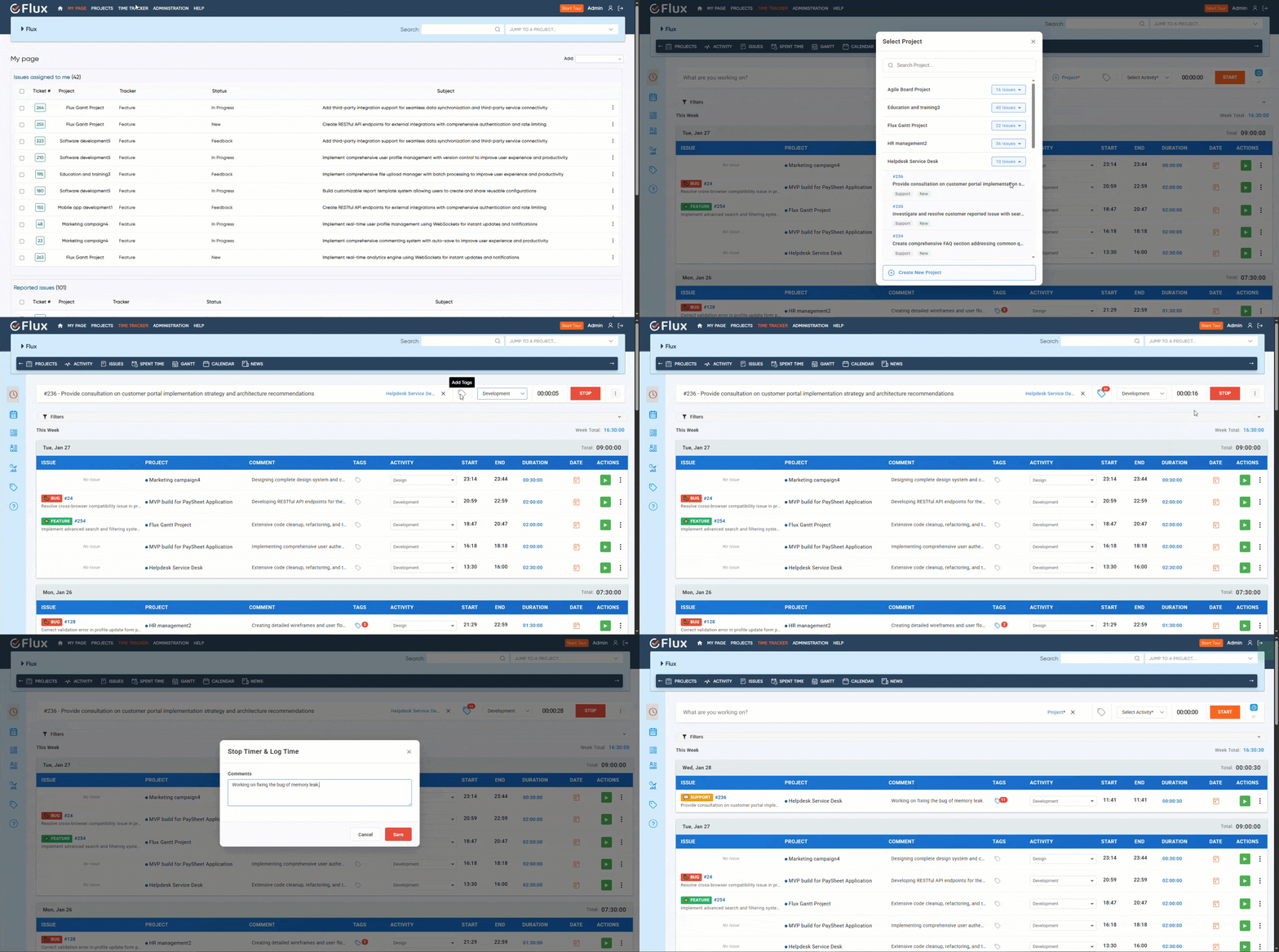
How to Run the Timer  #

  1. Select the ProjectIssueTag, and Activity. 
  2. Click the Start button. The timer will begin running and a Stop button will appear.
  3.  To stop the timer: 
    1. Click Stop 
    2. Enter a comment (if required by Redmine settings) 
    3. Fill any required custom fields 
  4. Click Stop to save the time entry.

    Note: 
    If location tracking is required and the user denies location access, the timer will not start. 

redmineflux time tracker start time

How to Update Time Entries from the Time Tracker  #

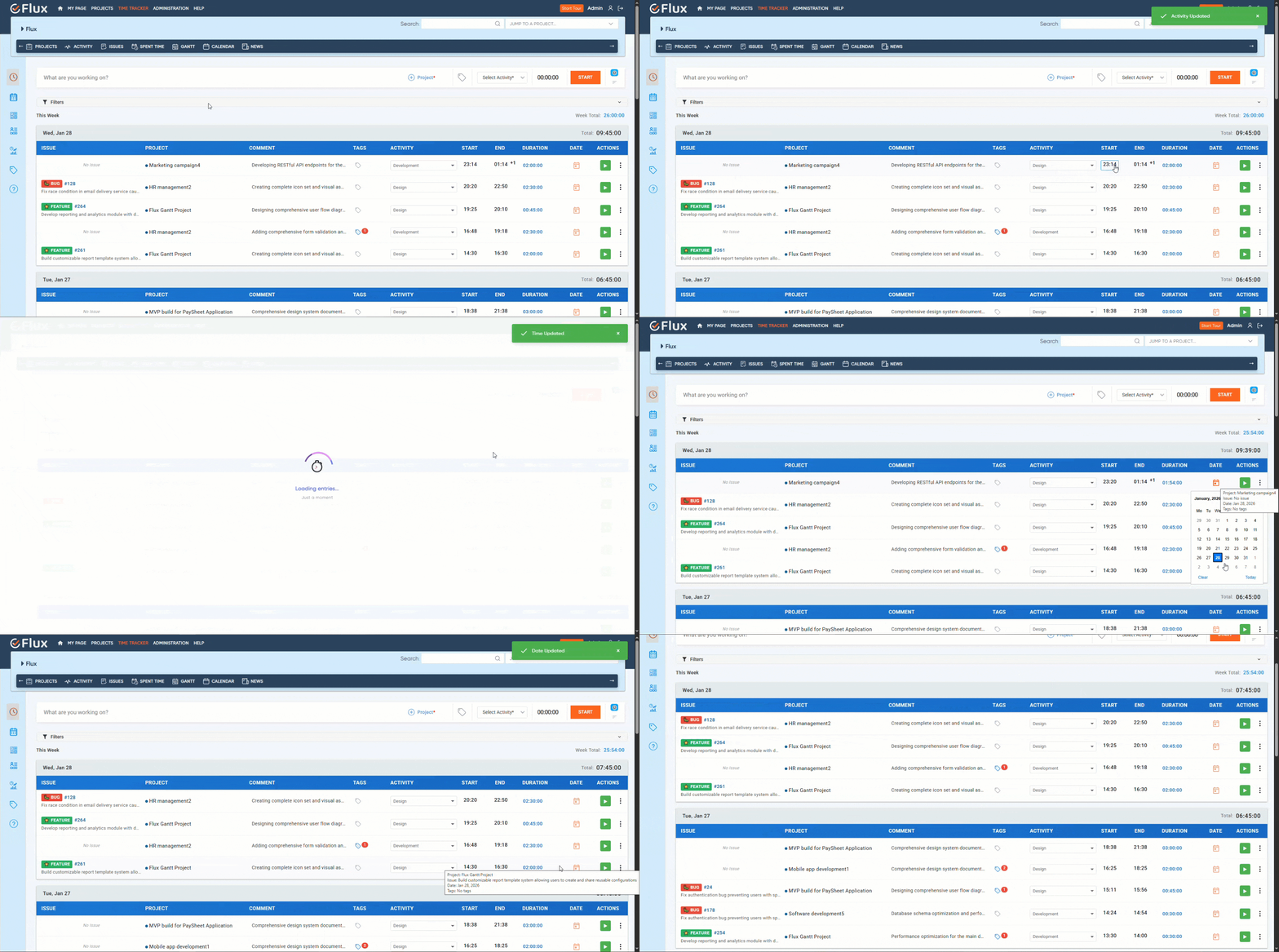
You can update the following fields inline: 

  • Comment 
  • Tag 
  • Activity 
  • Start Time 
  • End Time 
  • Date 

Steps: 

  1. Click on the field you want to edit. 
  2. Update the value. 
  3. Press Enter to save the changes. 

rdmineflux time tracker update time entry

How to Log Time Manually  #

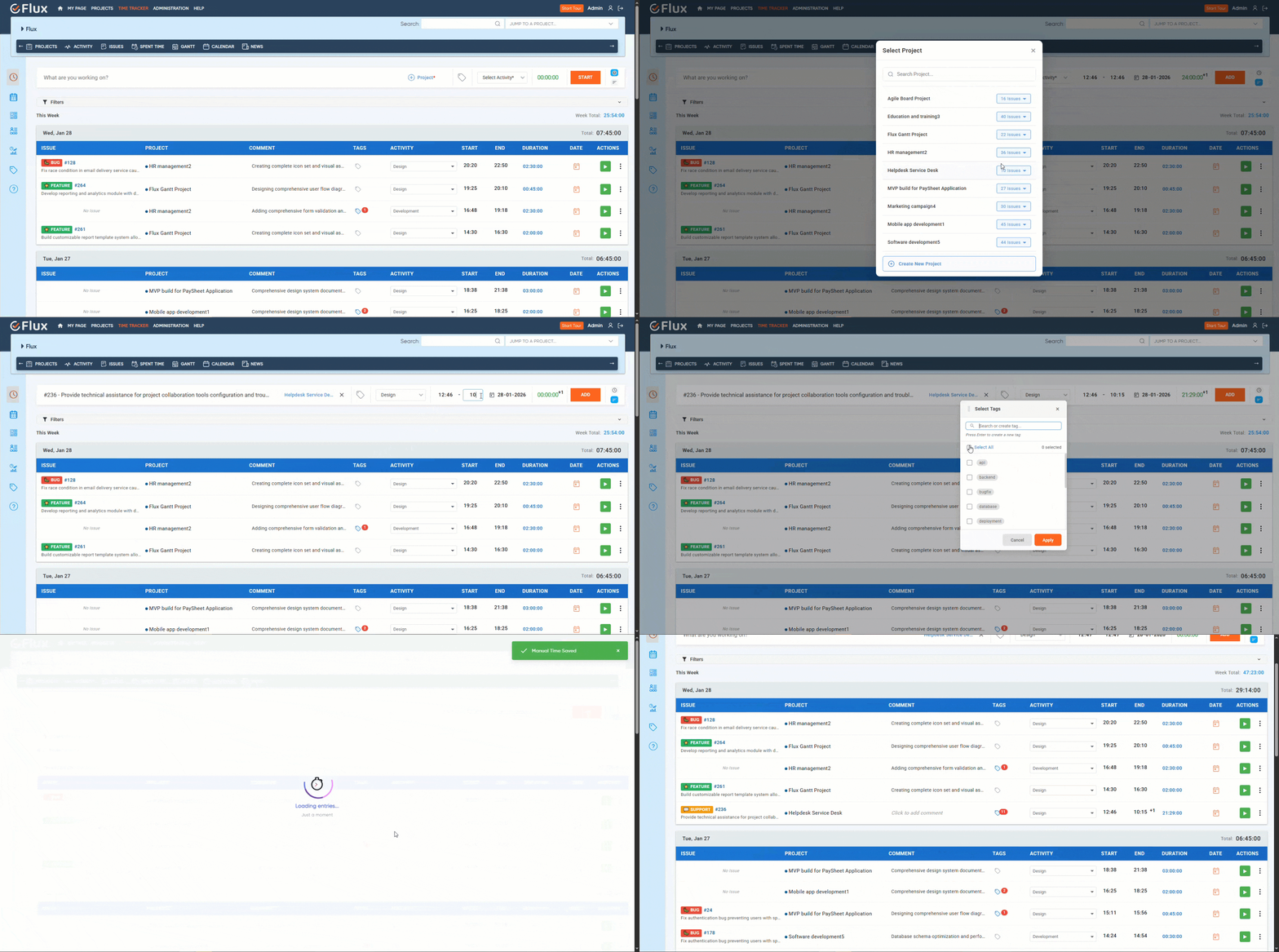
  1. Go to the Time Tracker page. 
  2. Click Manual Time Log. 
  3. Select the project, issue, and required fields. 
  4. Enter the Start TimeEnd Time, and Date. 
  5. Click Add to save the entry. 

Note: 
Manual time entry must be enabled by the admin in plugin configuration.

redmineflux time tracker manaual timelog

How to Duplicate a Time Entry  #

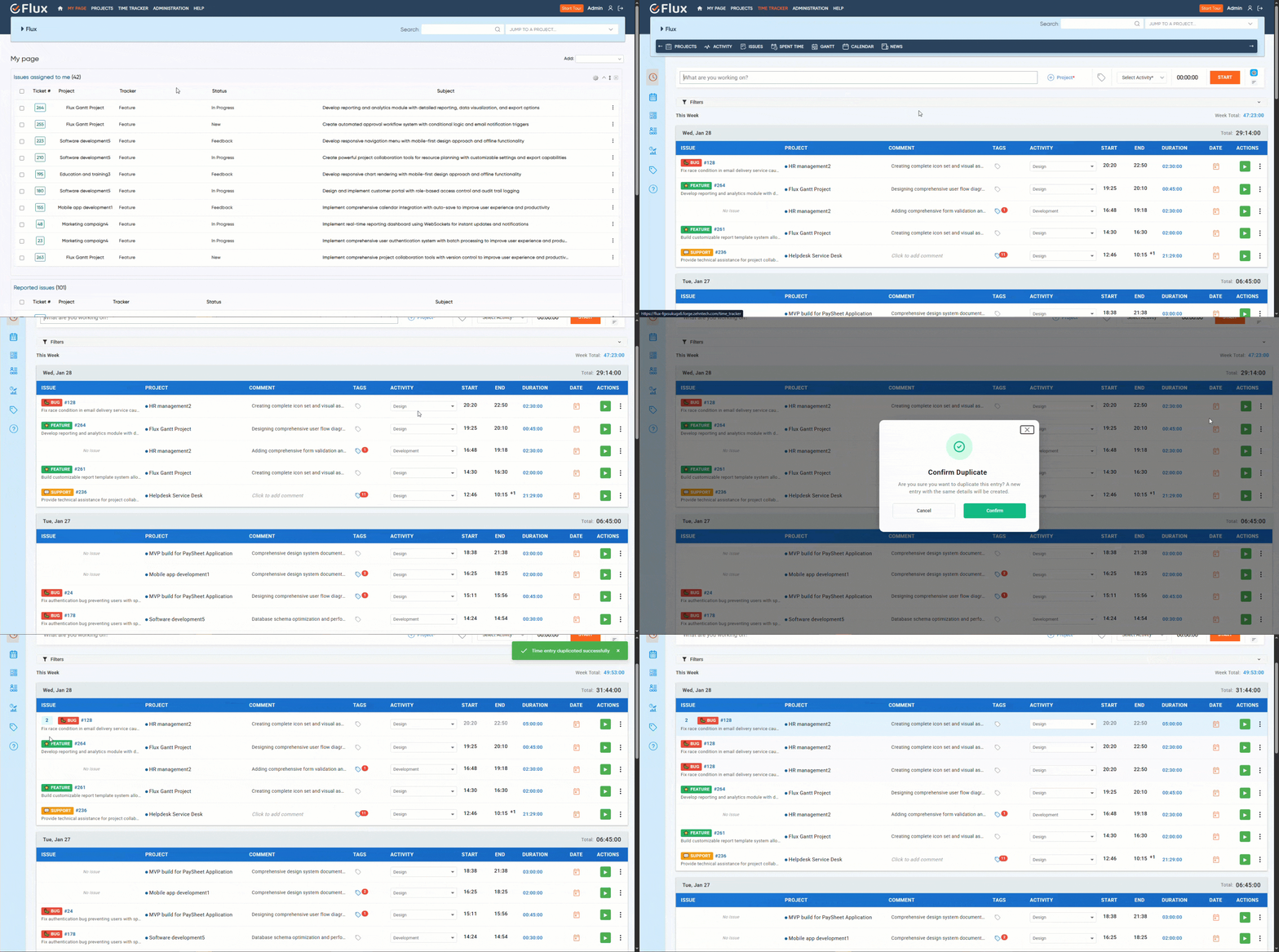
  1. Go to the Time Tracker page. 
  2. Locate the time entry you want to duplicate. 
  3. Click the context menu (three vertical dots). 
  4. Select Duplicate. 
  5. Confirm the action. 

Note: 
Entries with the same data on the same day are automatically combined. 

redmineflux time tracker duplicate time entry

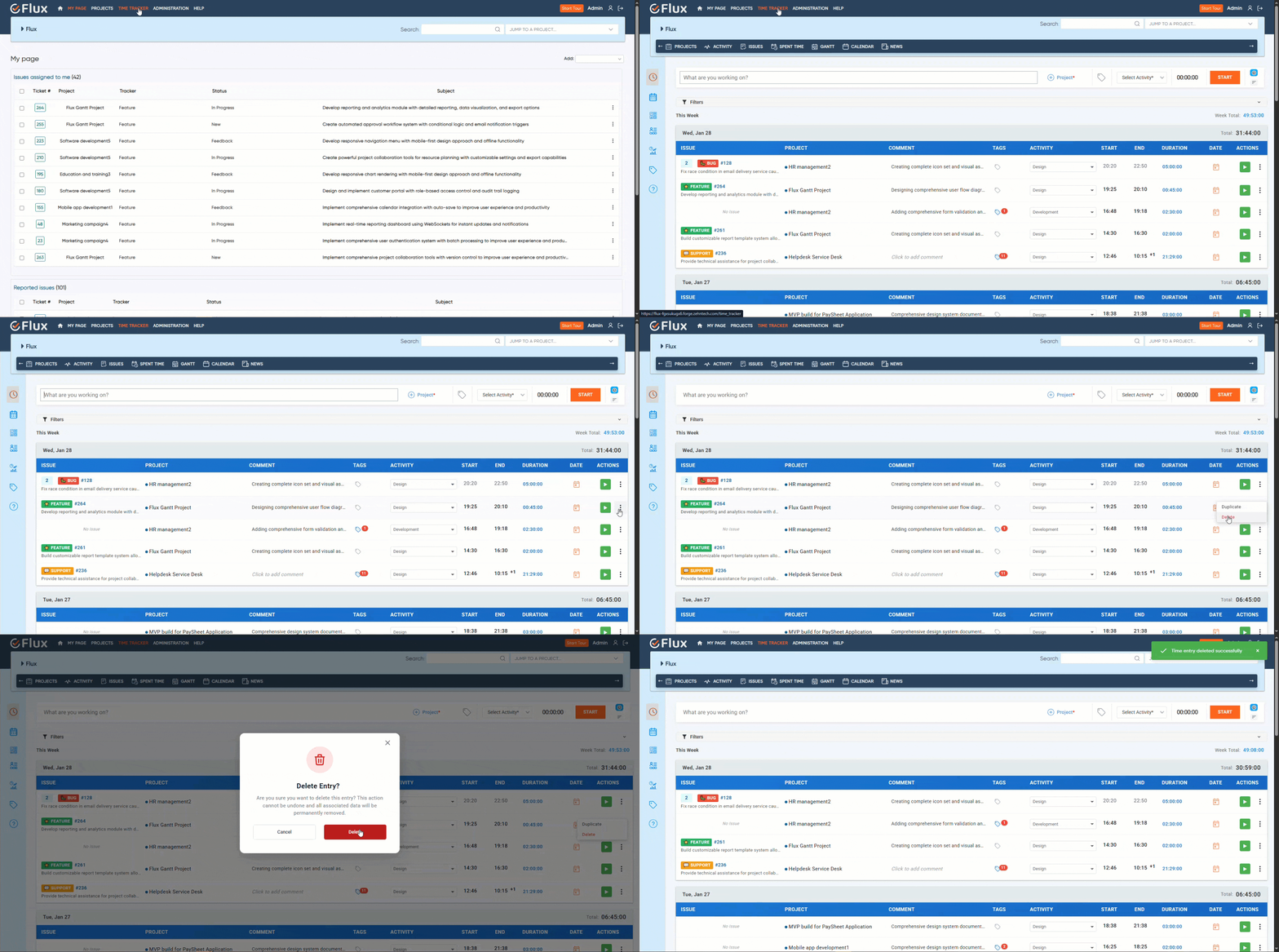
How to Delete a Time Entry  #

  1. Go to the Time Tracker page. 
  2. Locate the time entry to delete. 
  3. Click the context menu (three vertical dots). 
  4. Select Delete. 
  5. Confirm the deletion. 

redmineflux time tracker delete time entry

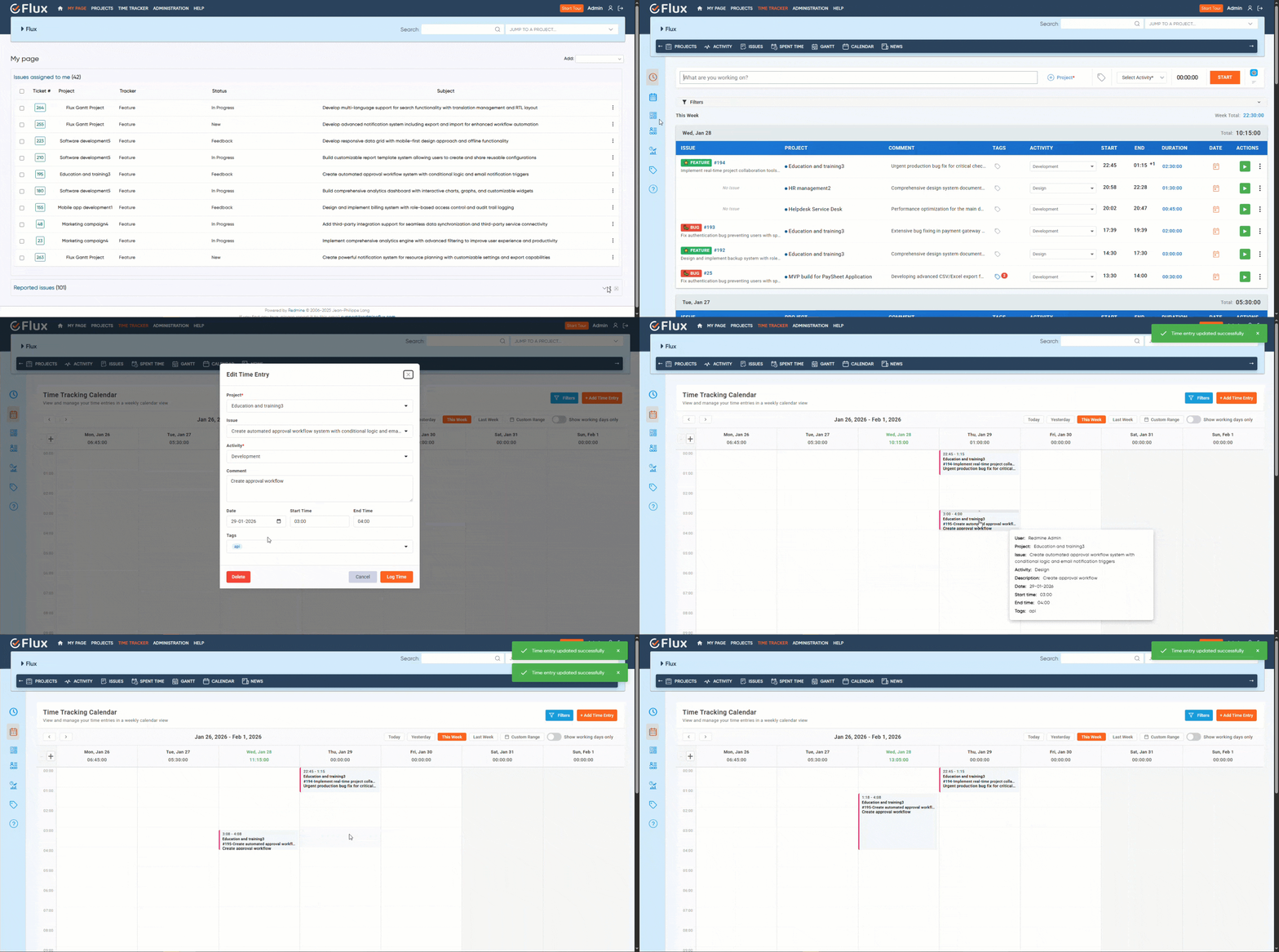
How to Log Time from the Calendar  #

  1. Open the Time Tracker page. 
  2. Click the Calendar icon from the sidebar. 
  3. Click on add time entry 
  4. Fill in the required fields. 
  5. Click Log Time to save the entry for the selected time range. 

redmineflux time tracker calendar

How to Edit Time Entries from the Calendar  #

You can edit time entries in multiple ways: 

  • Extend or reduce time by dragging the start or end of the entry. 
  • Double-click the entry to edit details. 
  • Drag and drop entries to move them between dates. 

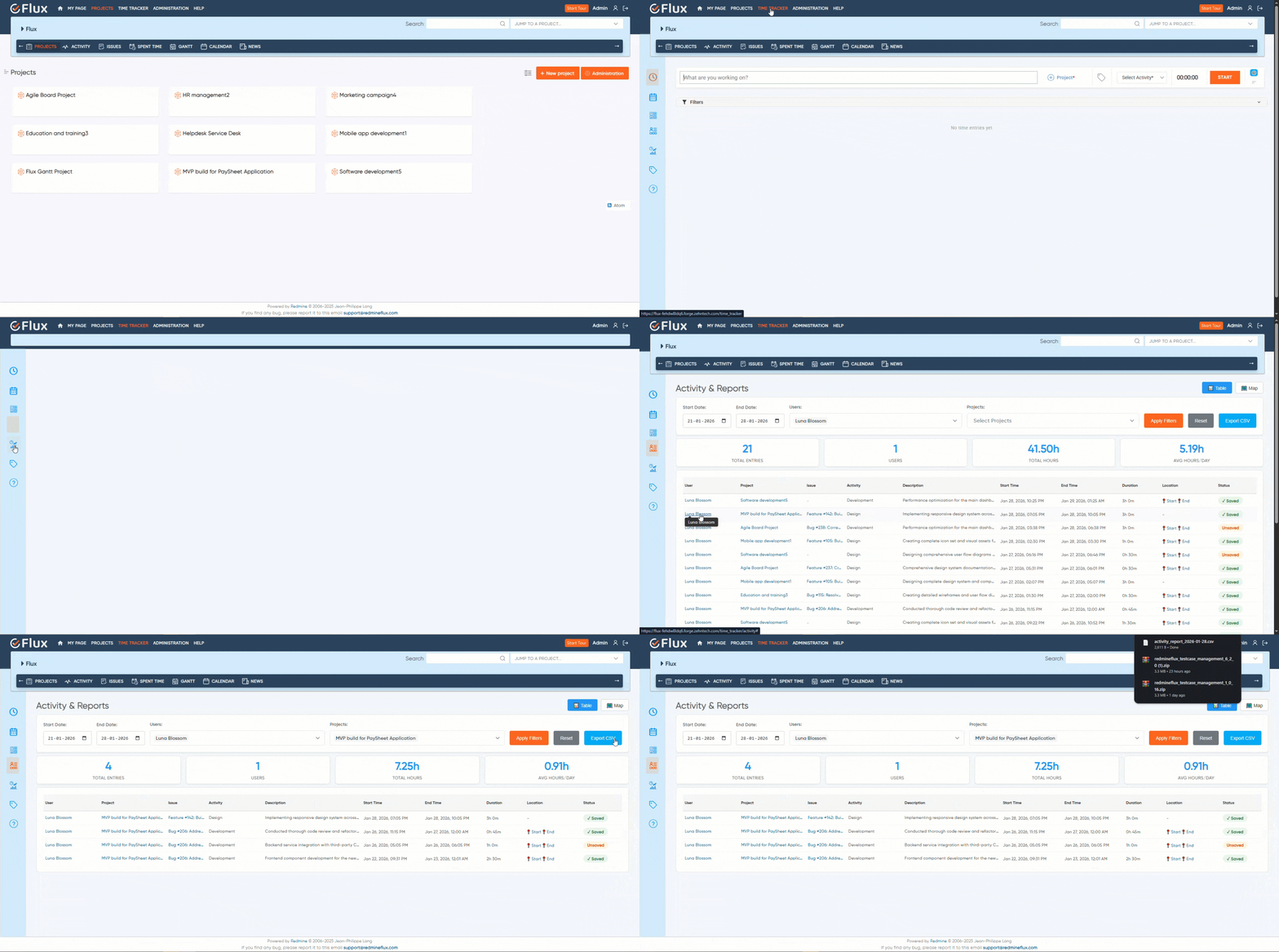
How to View Activity in the Time Tracker Plugin  #

  1. Go to the Time Tracker page. 
  2. Open the Activity tab. 
  3. View activity logs for all users. 
  4. Apply filters based on: 
    1. Project 
    2. User 
    3. Custom date range 
  5. Use Map View to see user locations (if location data is available). 

redmineflux time tracker activity

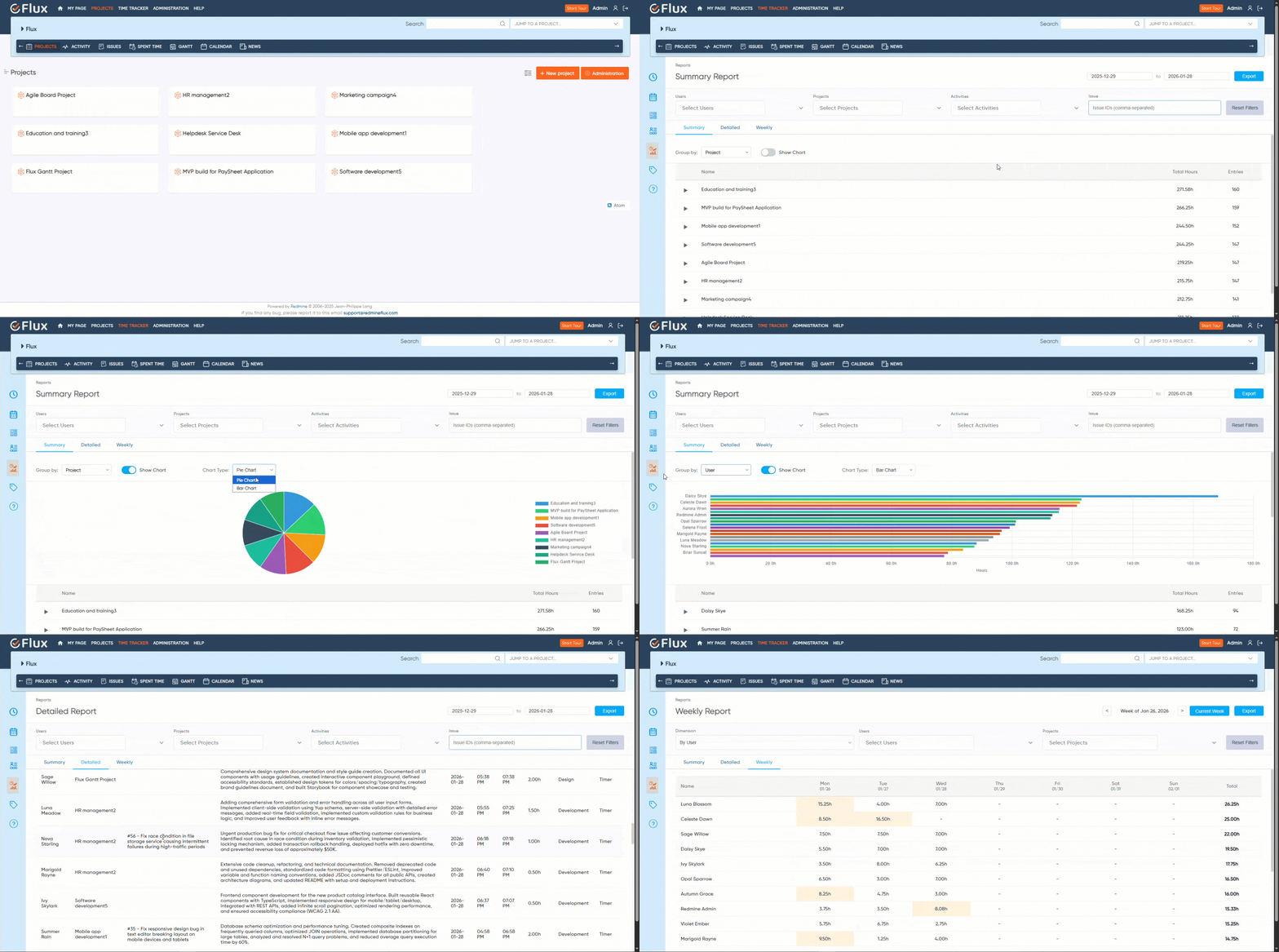
Reports in the Time Tracker Plugin  #

The plugin provides three types of reports: 

Summary Report  #

  • Group data by ProjectUser, or Activity 
  • View chart-based summaries 
  • Export reports in PDFCSV, or XML 

Detailed Report  #

  • View detailed time entry data 
  • Filter by project, user, and activity

Weekly Report #

  • View weekly time data 
  • Filter by user and project 

redmineflux time tracker report

Managing Tags in the Time Tracker Plugin #

To manage tags: 

  1. Open the Time Tracker Plugin. 
  2. Navigate to the Tags section. 
  3. Create a tag by entering a name and clicking Add. 
  4. Filter tags by Used or Unused. 
  5. Edit or delete tags as needed. 

redmineflux time tracker calendar

Troubleshooting #

Ensure the Time Tracker Plugin is Installed Correctly  #

Verify that the Redmineflux Time Tracker Plugin folder exists in the Redmine/plugins directory. 
If the folder name was changed, the plugin may not load. Use the exact folder name provided in the plugin package. 

After installation or updates, always run: 

  • bundle install
  • RAILS_ENV=production bundle exec rails redmine:plugins:migrate (or Development environment accordingly) 

Restart the Redmine server after installation. 

Verify License & Security Key Activation #

If the plugin is not working: 

  • Go to Administration → Plugins → Configure 
  • Ensure the License Key and Security Key are correctly entered 
  • Click Apply to validate them 

If the domain or IP changed, update it in your Redmineflux account before attempting reactivation 

Confirm User Roles & Permissions  #

If certain users cannot see or access the Time Tracker: 

  • Go to Administration → Roles & Permissions 
  • Verify the required permissions are enabled:  
    • View time tracker activity 
    • View others’ time entries (if needed) 
    • View time tracker reports 
    • Manage time tracker tags 

Check Location Permissions  #

If timers fail to start: 

  • The plugin may require location access (based on admin settings) 
  • If location access is denied, the timer will not start 
  • Check browser location permission settings 

Verify Google Maps API Key  #

If the map or user location is not loading: 

  • Confirm that a valid Google Maps API Key is entered in the plugin configuration 
  • Ensure the key has required Maps API services enabled 

Layout or Display Issues  #

If the Time Tracker UI looks broken: 

  • Clear browser cache 
  • Verify the selected layout (Modern Card, Compact Layout, Detailed Expanded) 
  • Refresh the Time Tracker page 
  • Switch to another layout to isolate UI issues 

Time Entries Not Updating  #

If inline updates do not save: 

  • Ensure the user has edit permissions 
  • Check required custom fields 
  • Make sure required Redmine fields are not missing 
  • Reload the page and try again 

Migration or Database Issues  #

If the plugin fails after updates: 

  • Re-run plugin migration 
  • Ensure no old database schema conflicts exist 
  • Restart Redmine after migration 

Frequently Asked Questions (FAQs) #

Q: How do I install the Redmineflux Time Tracker Plugin? 
A:
Use these steps: 

  1. Upload the plugin folder to Redmine/plugins 
  2. Run bundle install 
  3. Run plugin migration 
  4. Restart the Redmine server 
    A full installation guide is included in the main document. 

Q: Where can I access the Time Tracker? 
A: After logging in, go to the top navigation and click Time Tracker.

You’ll see: 

  • Timer 
  • Manual timer 
  • List of time entries 

Q: Can I manually enter time?
A:
Yes. Enable Manual Time Entry from plugin configuration, allowing users to add custom start and end times. 

Q: How do I start and stop the timer?
A: 
 1. Select projectissuetag, and activity 
       2. Click Start 
       3. Fill required custom fields (if enabled) 
       4. Click Stop 
       5.The time entry will be saved  

Q: Can I edit time entries inline?
A: 
Yes. You can edit: 

  • Comments 
  • Tag 
  • Activity 
  • Start time 
  • End time 
  • Date 

Just click the field, edit, and press Enter. 

Q: Does the plugin track user location?
A:
Yes, if enabled by the admin.
Users must allow browser location access.
 

Q: Can I view or manage tags?
A:
Yes. Users with Manage time tracker tags permission can manage tags in the plugin.

Q: Can I view reports?
A:
Only if the role has View time tracker reports permission enabled.

Q: I switched domains; how can I reactivate the plugin?
A:
Update the domain URL in your Redmineflux account’s Order section. Then re-enter your License and Secret Key in Redmine.

Uninstallation of Plugin  #

  1. Go to Redmine/plugins 
  2. Delete the Time Tracker plugin folder 
  3. If migrations were applied, revert them: 
    bundle exec rake redmine:plugins:migrate Name=plugin_name VERSION=0
  4. Restart the Redmine server. This will completely remove the plugin from your Redmine instance. 

Conclusion #

The Redmineflux Time Tracker Plugin provides a modern, intuitive solution for tracking and managing work hours across projects. With features like real‑time tracking, manual entry, location logging, customizable layouts, and permission‑based access, it streamlines time management in Redmine. 
Following this guide ensures a smooth installation, configuration, and daily use experience. 

Powered by BetterDocs