
Introduction #
The Redmineflux Checklist Plugin is a powerful tool, a flexible project management tool. This plugin enhances Redmine’s functionality by adding checklist capabilities to issues, allowing users to create and manage task lists within issues. With the Redmine Checklist Plugin, users can easily track progress, ensure task completion, and improve overall productivity. It provides a straightforward way to create, edit, and track checklist items within issues, making it easier to stay organized and focused on project milestones.
Version Compatibility #
Redmine Versions
- 4.0.x, 4.1.x, 4.2.x
- 5.0.x
- 6.0.x(coming soon)
Installation #
To install Redmine Checklist Plugin follow these steps
- Make sure you have a working installation of Redmine.
- Download the Checklist plugin from the redmineflux.com website. The plugin typically comes in the form of a ZIP file.
- Extract the Checklist Plugin zip file to Redmine’s plugins directory (/path/to/redmine/plugins) and do not change the plugin folder name.
- Run the following command to install the required dependencies
Bundle install - Run migrate command for database migration
-> In ProductionRAILS_ENV=Production bundle exec rails redmine:plugins:migrate
-> In Development
RAILS_ENV=Development bundle exec rails redmine:plugins:migrate - Restart Redmine server to load the plugin
Rails s
Configuration #
- Log in to Redmine as an administrator or user.
- Navigate to the header tab and click on the
“Issues” tab. - Open the issue where you want to add a checklist.
- Scroll down to the Checklist section or tab.
- Click the add button to create a new checklist item.
- Enter the title or description of the checklist item and enter to create checklist item.
- Also, have the feature to edit or delete the checklist and change the progress of the checklist.
How To #
How to Create the Checklist Item #
- Open the issue where you want to add a checklist.
- Scroll down to the Checklist section or tab.
- Click the
“Add” button to create a new checklist item. - Enter the title or description of the checklist item.
- Press enter to create the checklist item.
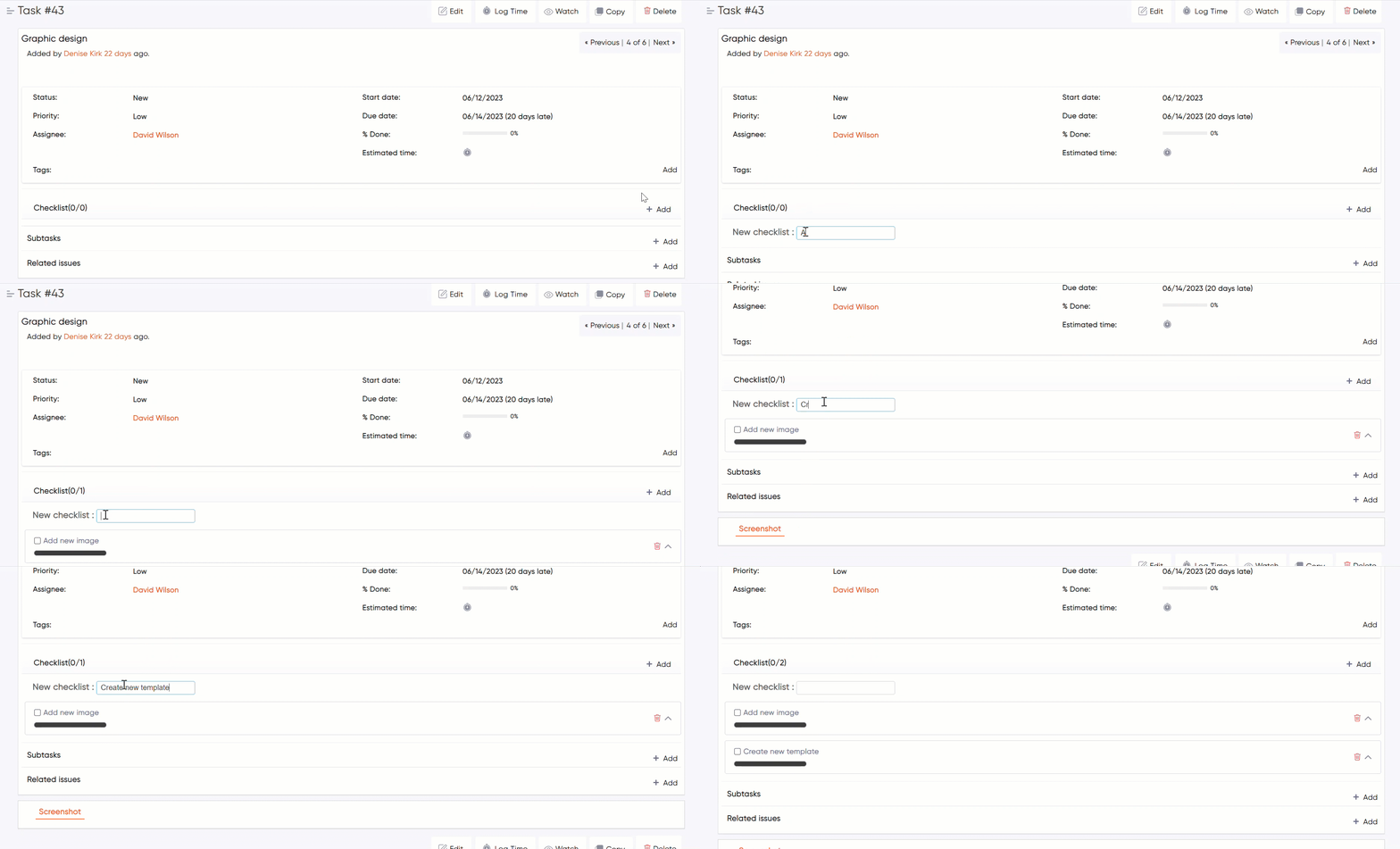
How To Create Sub Checklist item #
- Open the checklist item where you want to create a sub-checklist.
- Locate the checklist item and click on the up-arrow icon to open the details or editing view.
- Click the
“Add” button to create a new sub checklist item. - Enter the title or description of the checklist item.
- Press enter to create the sub-checklist item.
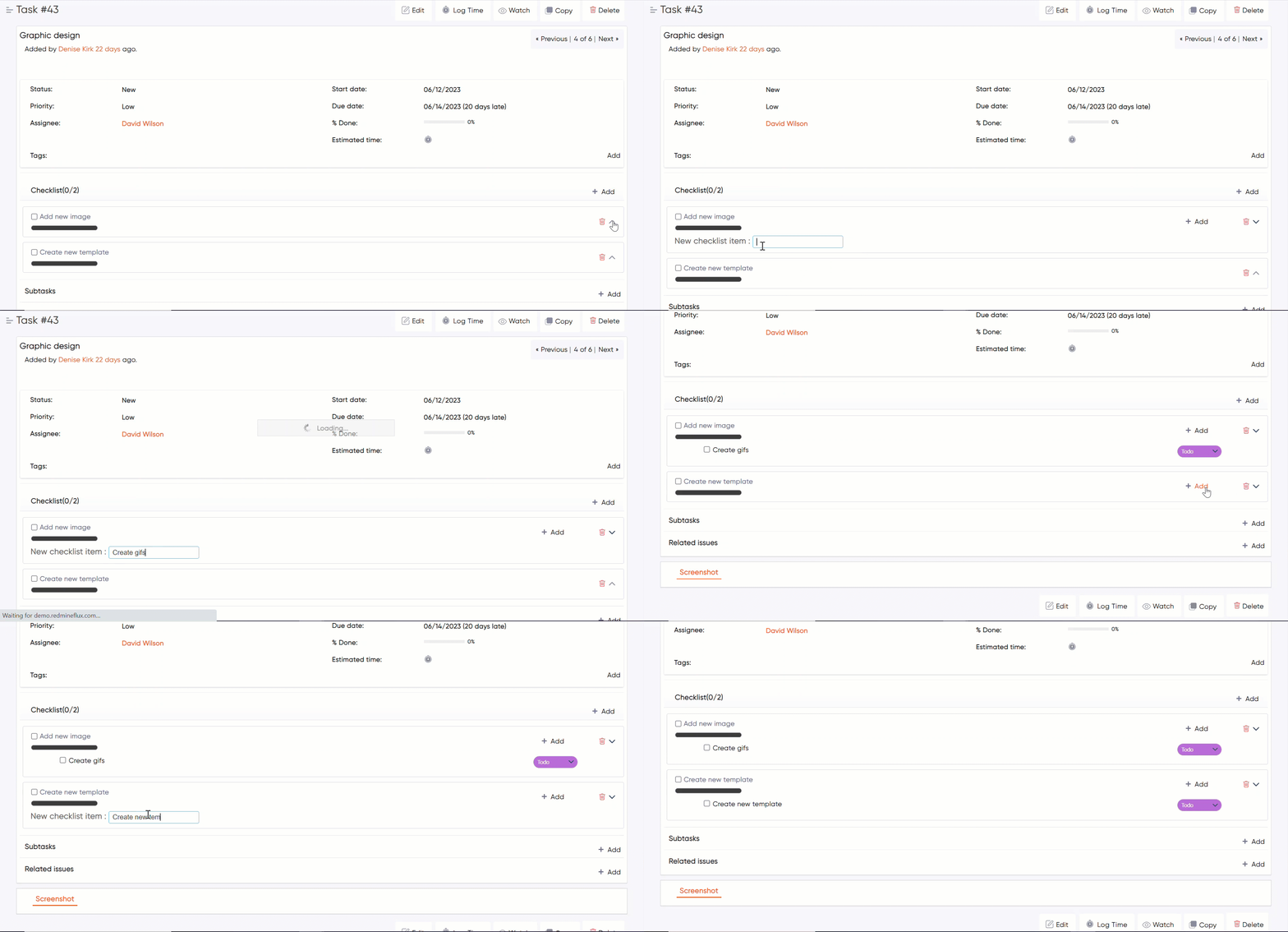
How to Edit and Delete the Checklist #
- Open the checklist item where you want to edit or delete the checklist.
- Locate the checklist item and click on the up-arrow icon to open the details or editing view.
- To edit the title or description of the checklist item, click on the edit icon
- Press enter to save or update the edited checklist item.
- Additionally, click on the trash bin icon or delete icon next to the item you wish to delete.
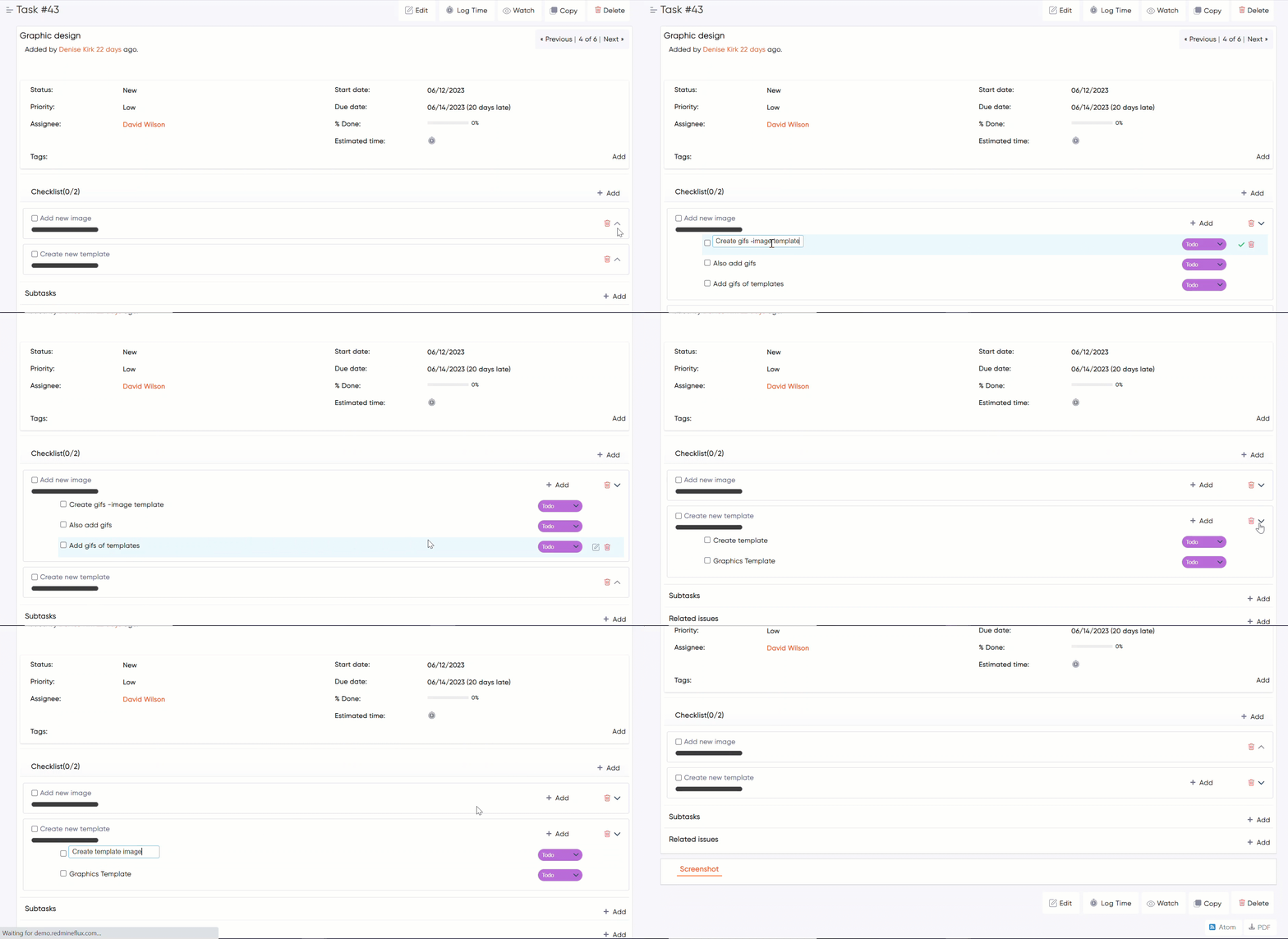
How to Change the Progress of Checklist #
- Locate the checklist item you want to modify.
- Click on the up-arrow icon next to the item to open its details.
- Select or click on the drop-down menu to change the progress status of the checklist item, such as
“To-do” ,“In progress” or“Complete”. 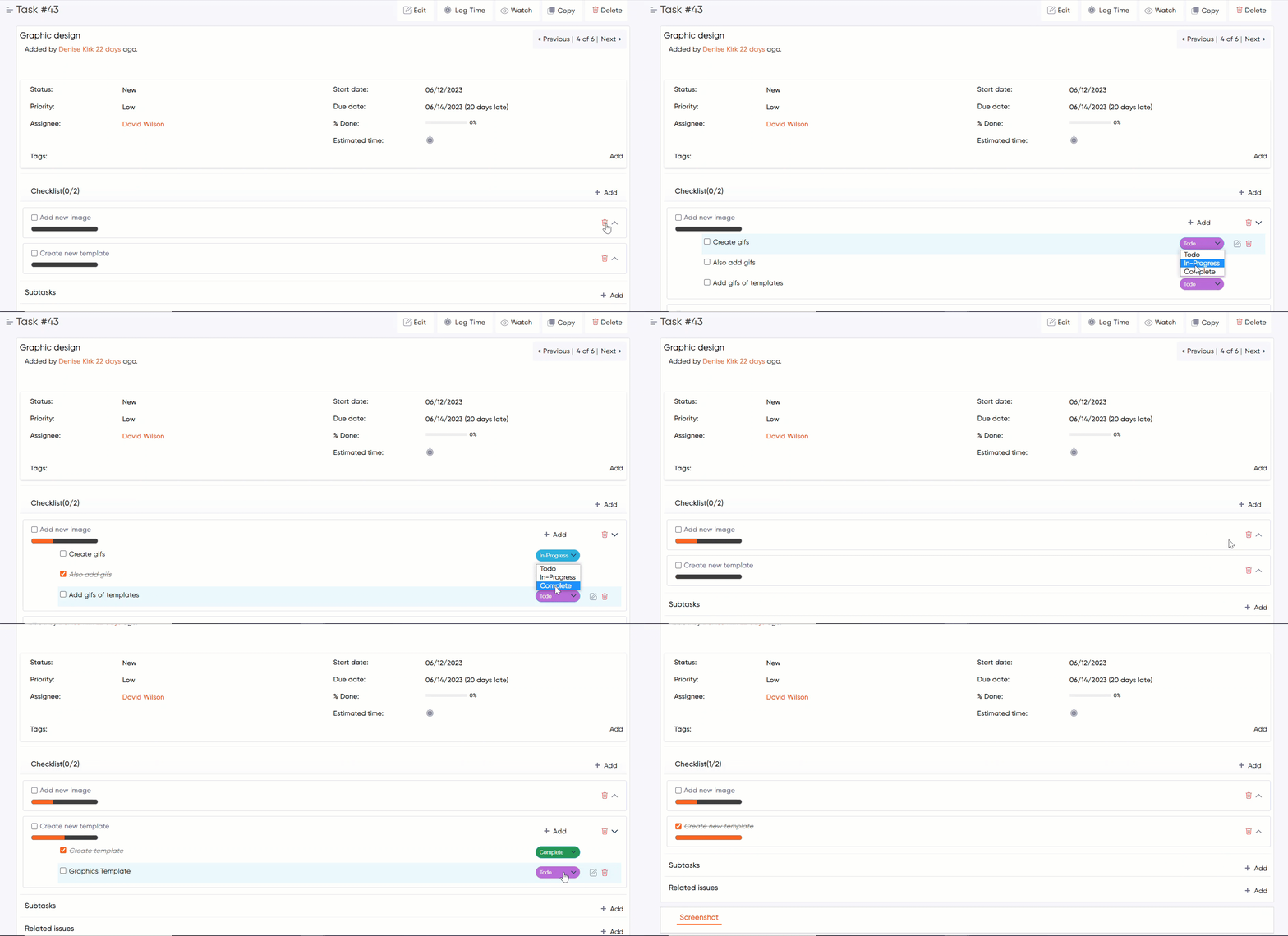
Troubleshooting #
- Verify that the plugin is correctly installed and enabled.
- Check the Redmine logs for any error messages related to the plugin.
- Ensure that the plugin is compatible with your version of Redmine.
- If you made any changes to the plugin or Redmine configuration, clear the Redmine cache and restart the application.
- Disable any other plugins that modify the same fields or interfere with the inline editing feature. Test if the issue persists without those plugins.
- If you are experiencing a specific problem, consult the plugin’s documentation or seek assistance from the plugin’s developer or support channels.
Frequently Asked Questions (FAQ) #
Q: Can I create multiple checklists within a single issue?
A: Yes, with the Redmine Checklist Plugin, you can create multiple checklists within a single issue. Each checklist will be associated with the specific issue, allowing you to manage multiple sets of tasks or subtasks within one issue.
- Open the issue where you want to add a checklist.
- Scroll down to the Checklist section or tab.
- Click the
“Add” button to create a new checklist item. - Enter the title or description of the checklist item.
- Press enter to create the checklist item.
- Repeat the above steps to create additional checklists as needed.
Q: Can I track the progress of a checklist?
A: Yes, the Redmine Checklist Plugin includes a progress indicator in the form of a visual progress bar. The progress bar displays the percentage of completed checklist items, giving you an overview of the checklist’s progress.
Q: Is Redmine Flux’s Checklist plugin easy to use?
A: Yes, Redmine Flux’s Checklist Plugin offers an intuitive and easy-to-use interface making it the best choice for users with minimal technical knowledge. Just integrate the plugin into your Redmine software and start using it effortlessly.
Uninstallation of Plugin #
To uninstall the Redmine Flux Checklist Plugin, follow these steps
- Go to the Checklist Plugin directory in Redmine.
- Delete the entire Checklist Plugin directory from Redmine/plugins directory. This step removes the plugin files from your Redmine installation.
- If the plugin required a migration, run the following command to downgrade your database (make a db backup before):
Bundle exec rake redmine:plugins:migrate Name=plugin name VERSION=0 RAILS_ENV=production - Restart the Redmine server to see the changes.
- This will uninstall the Redmine Flux Checklist Plugin from Redmine.
Updates and Revisions #
- Plugin Updates: Keep track of plugin updates and new releases. Visit the official plugin website, plugin repository, Plugin updates may include bug fixes, performance improvements, or new features related to tag management.
- Documentation Revisions: Regularly review the plugin’s official documentation for any revisions or updates. Documentation may be revised to reflect changes in the plugin’s functionality, configuration options, or integration with the latest versions of Redmine.


